
What does “Could not load this ChatGPT conversation” mean?
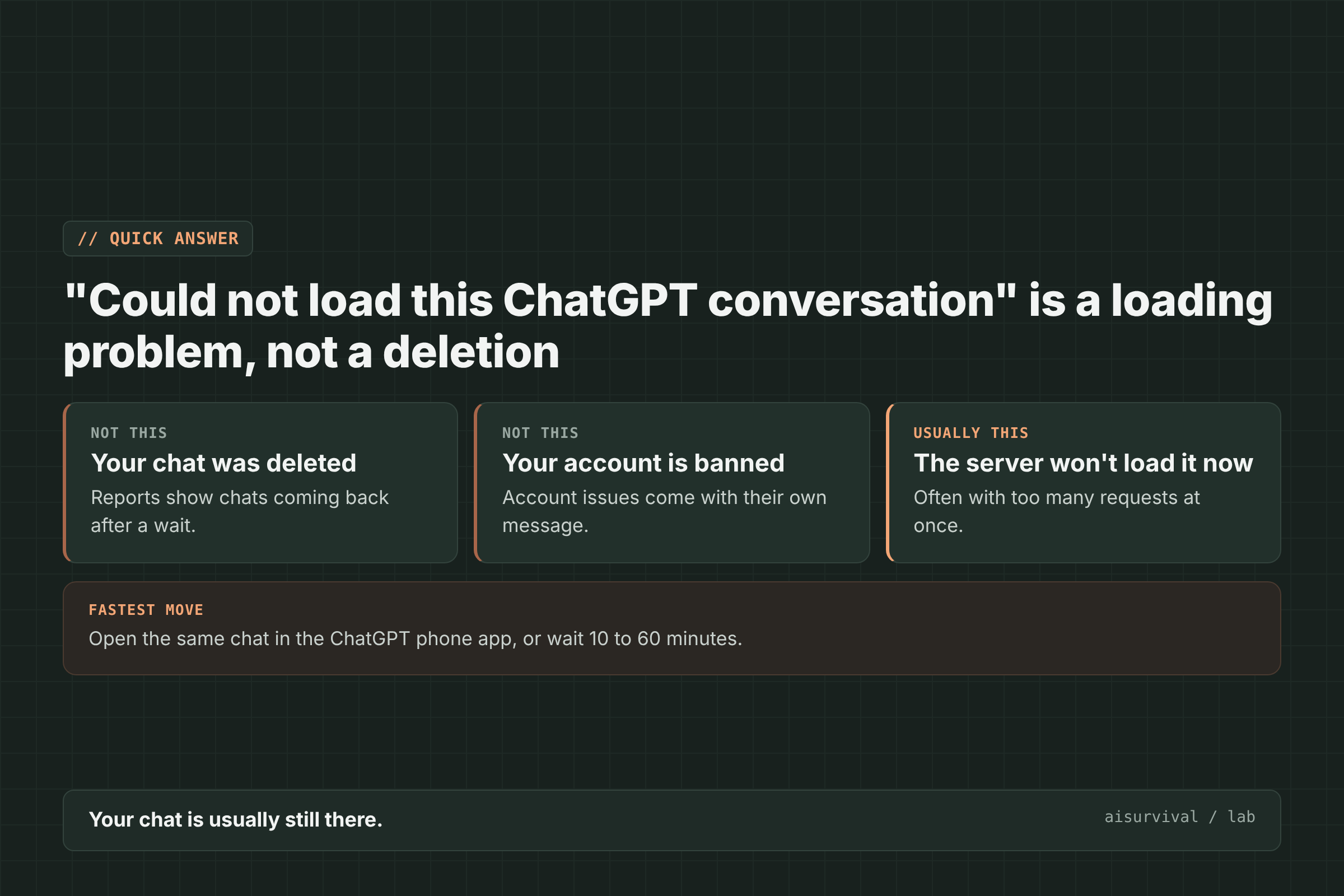
“Could not load this ChatGPT conversation” means ChatGPT failed to open one of your existing chats right now. It does not mean the chat was deleted or your account was banned. In user reports, the chat usually comes back after a wait, and it often opens in the ChatGPT phone app when the web version fails. The fastest fix is to try another app, or close extra tabs and wait 10 to 60 minutes.
Reports of this error started around late September 2026 and kept coming through early November, on the web, the macOS app, and ChatGPT Work (OpenAI Community, GitHub).
Below: how to tell it apart from similar errors, six fixes in order, and how to keep important work safe next time.
On this page
- Which loading error is it?
- What causes it
- How to fix it (6 steps)
- How to avoid losing work
- Limits of this guide
- FAQ
Is “Could not load this ChatGPT conversation” the same as “Unable to load history”?
No. “Could not load this ChatGPT conversation” means one specific chat failed to open. “Unable to load history” means the list of chats in the sidebar failed. A 429 “Too many requests” means you sent too many requests in a short time. They often show up together, so read the exact words first.
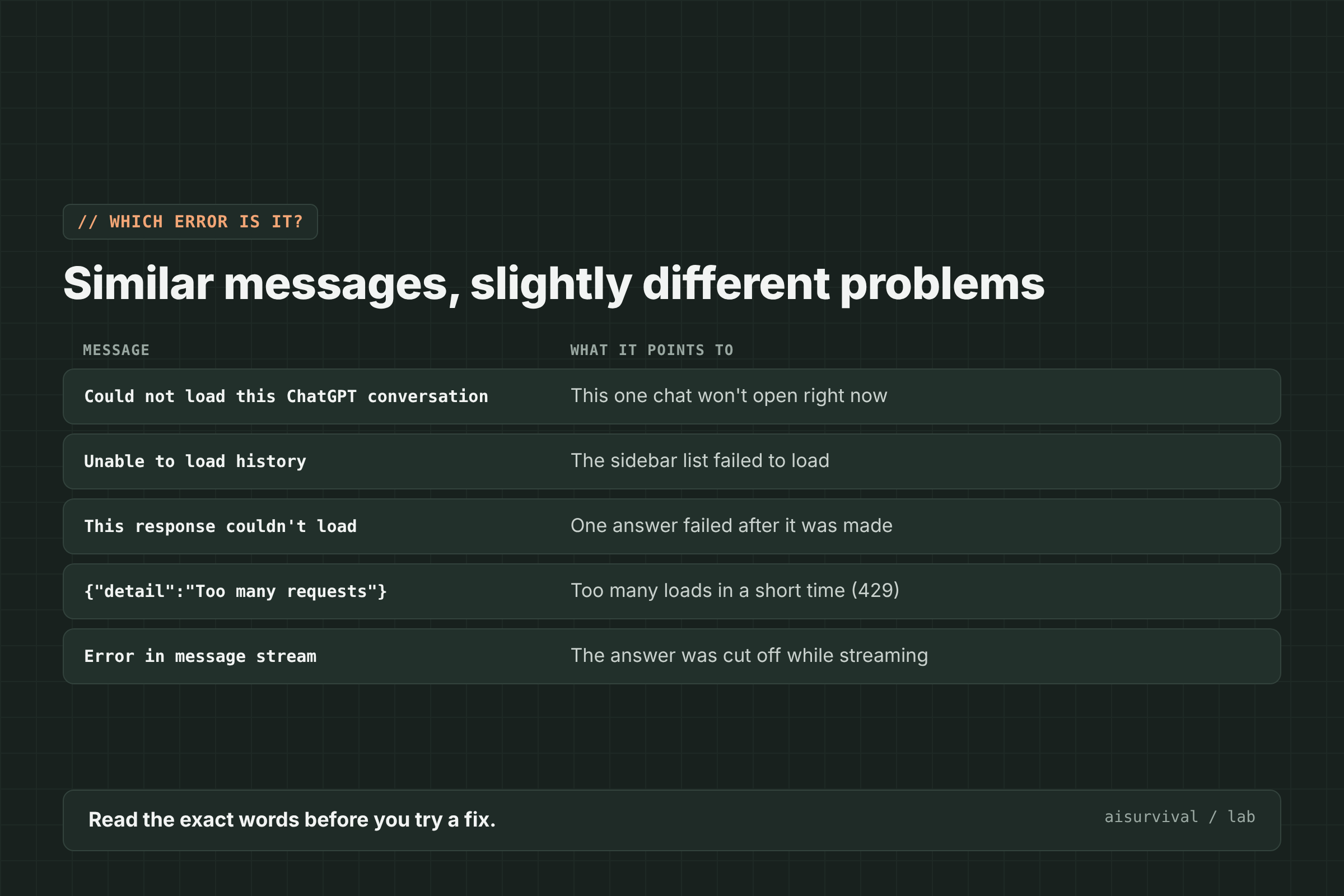
| Message you see | What it points to |
|---|---|
| Could not load this ChatGPT conversation | This one chat will not open right now |
| Unable to load history | The sidebar list failed to load |
| This response couldn’t load | One answer failed after it was made |
| {“detail”:”Too many requests”} | Too many loads in a short time (429) |
| Error in message stream | The answer was cut off while streaming |
If you see “Too many requests,” read our guide to ChatGPT 429 “Too many requests”.
What causes “Could not load this ChatGPT conversation”?
OpenAI has not published a cause. An OpenAI support account said in October that the team was “investigating the conversation-loading issue further” (OpenAI Community). User reports point to a server-side loading problem, sometimes tied to rate limits when many chats are opened quickly.
- Opening many chats quickly. One Plus user saw failures after opening about 35 chats in a row. The errors cleared after a wait (thread).
- Rate limits on loading. Another user saw the web app return a 429 error with {“detail”:”Too many requests”} when opening chats, while the iOS app worked.
- ChatGPT Work threads. Many early reports came from Work conversations run in the cloud (thread).
- Not a status-page outage. Several users said the OpenAI status page showed no incident while the error was happening.
How to fix “Could not load this ChatGPT conversation” (6 steps)
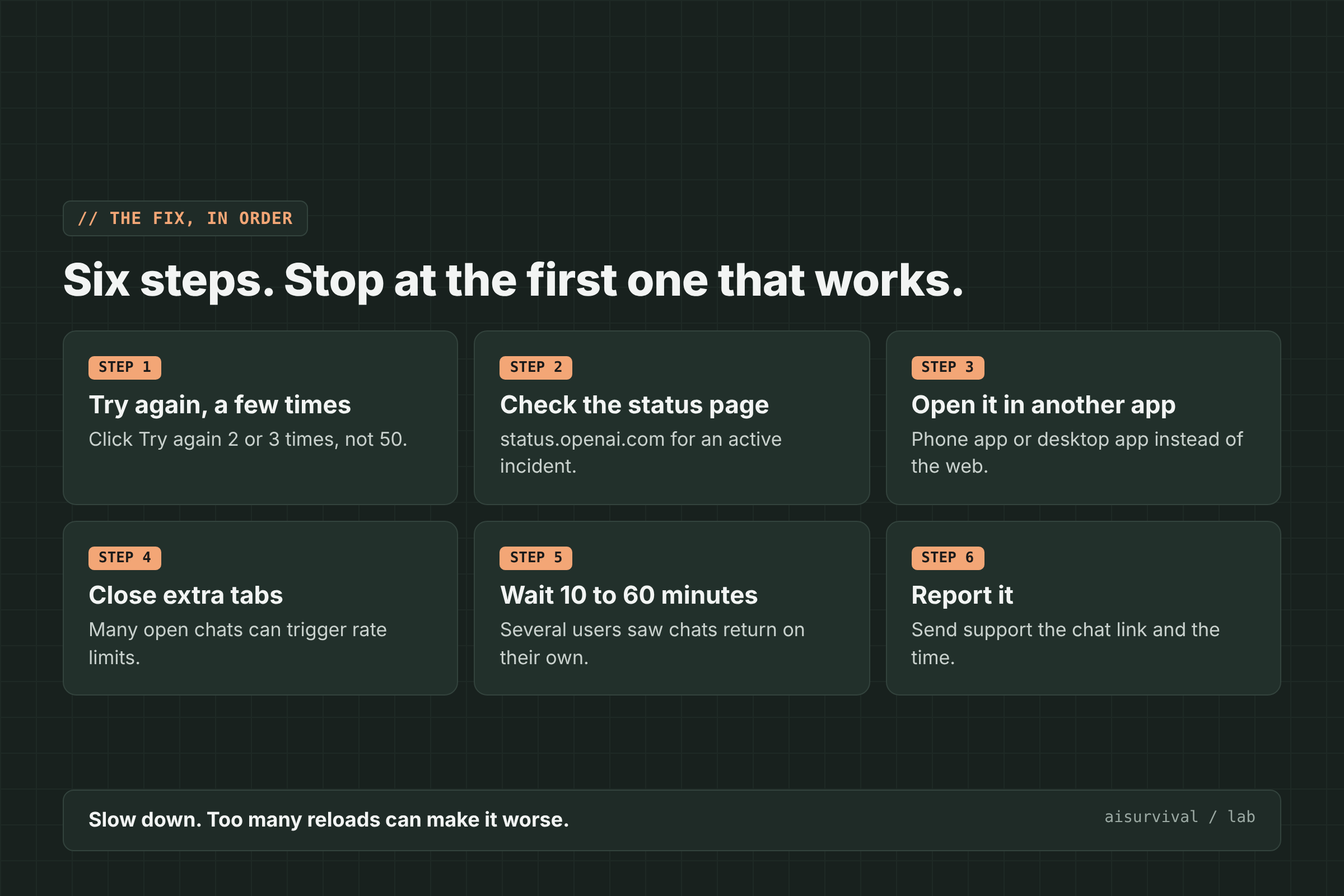
To fix it, try again a few times, check the status page, open the chat in another app, close extra tabs, wait 10 to 60 minutes, and report it if it lasts. Stop at the first step that works.
1. Click “Try again,” a few times
Click “Try again” two or three times with short pauses. Some users eventually got through after many clicks, but rapid reloading can also add to rate limits, so do not hammer it.
2. Check the status page
Open status.openai.com. If there is an incident, wait for it to clear. If the page says everything is working, keep going with the next steps.
3. Open the chat in another app
Try the ChatGPT phone app or the desktop app. Several users could open chats on iOS that failed on the web.
4. Close extra tabs
If you have many ChatGPT tabs or chats open, close them and open only the one you need. Users suspect that many parallel loads trigger limits.
5. Wait 10 to 60 minutes
Several users reported that their chats came back on their own after a short break, from about 10 minutes to an hour or more. Use the time to start the urgent work in a new chat.
6. Report it
If the chat stays locked, contact OpenAI support with the chat link, the time and time zone, and your browser or app. Support has asked users for conversation identifiers.
What usually does not help
- Clearing cache and cookies over and over. Users tried hard refreshes, incognito windows, and re-logging in without a consistent fix. One user said logging out and in made it worse.
- Deleting the chat. The chat is usually still there. Do not delete it to “fix” it.
How do I avoid losing work when a ChatGPT chat won’t load?
To avoid losing work, do not treat a single chat as your only copy. Save finished outputs in a doc or notes app as you go, keep one task per chat, and open fewer chats at once. Every so often, export your data from ChatGPT’s settings.
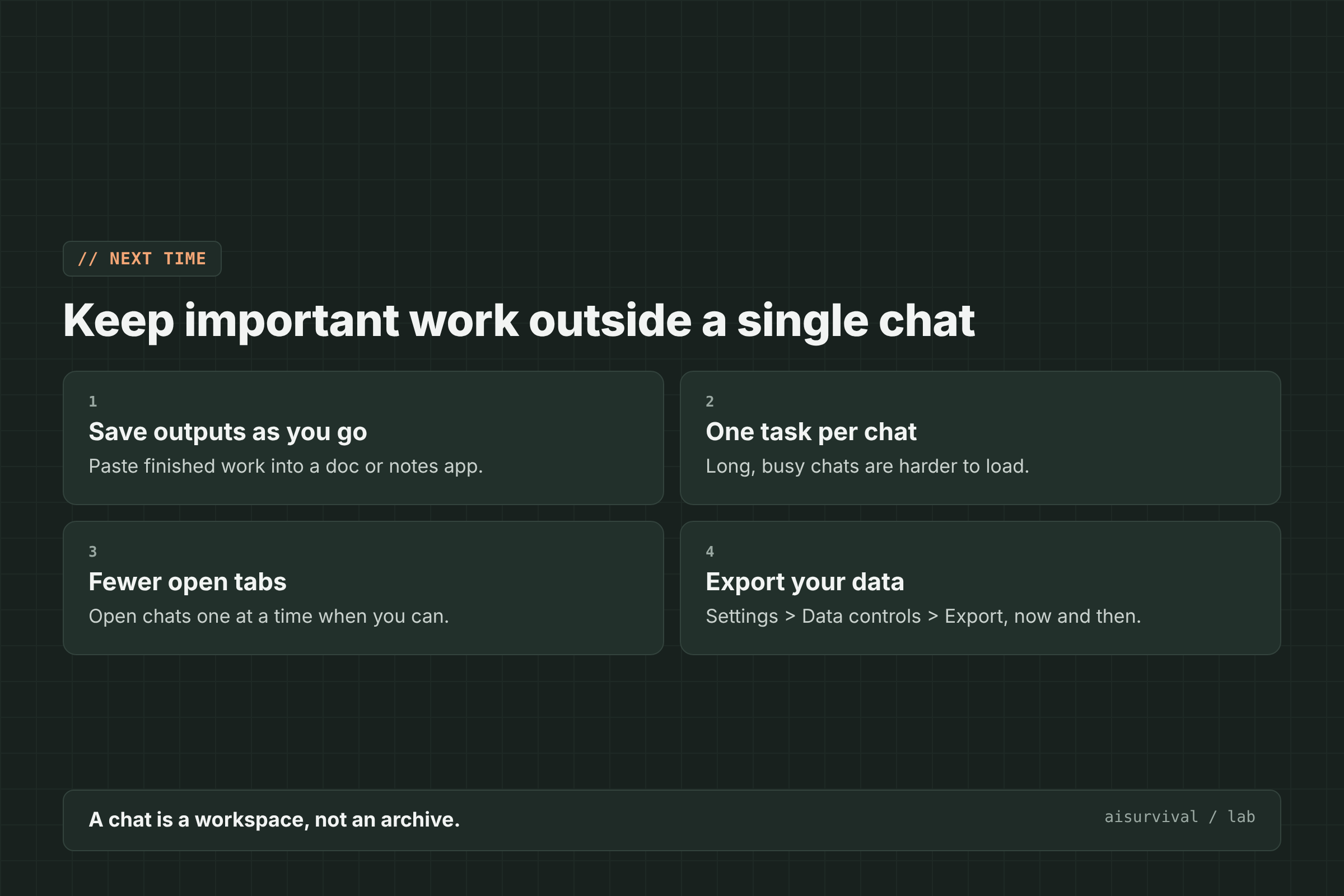
- Save outputs as you go. Paste finished work into a doc.
- One task per chat. Long, busy chats are harder to load and harder to rebuild.
- Fewer open tabs. Open chats one at a time when you can.
- Export your data. In Settings, under Data controls, export your chats now and then.
A chat is a workspace, not an archive. Keep the important parts somewhere you control.
Limits of this guide
- We did not reproduce this error on purpose. The causes and fixes come from the OpenAI community forum and GitHub reports.
- OpenAI has not confirmed a cause or a permanent fix. The tips here are what users reported as helping.
- We checked these reports on November 13, 2026.
FAQ
Was my ChatGPT conversation deleted?
Usually not. Users reported chats loading again after a wait or in another app, and no report showed chats being deleted.
Why does the chat open on my phone but not on the web?
Several users saw this. One user found the web app hitting a “Too many requests” limit while the iOS app worked. Use the app that works while you wait.
Is ChatGPT down?
Not necessarily. Many users saw this error while status.openai.com showed no incident.
Should I keep clicking “Try again”?
A few tries are fine. Endless reloading can add to rate limits, so take a break instead.
Keep going
This post is part of our AI Tool Fixes series on working as a team of one with AI as your teammate. For other ChatGPT errors, see {“detail”:”Bad Request”} in ChatGPT and “Selected model is at capacity”.
Your turn: Which ChatGPT error should we explain next? Tell us in the comments.